Google Merchant Center Disapproved Products: A Practical Fix Guide
A practical route from an error in Merchant Center to the product record that needs fixing.
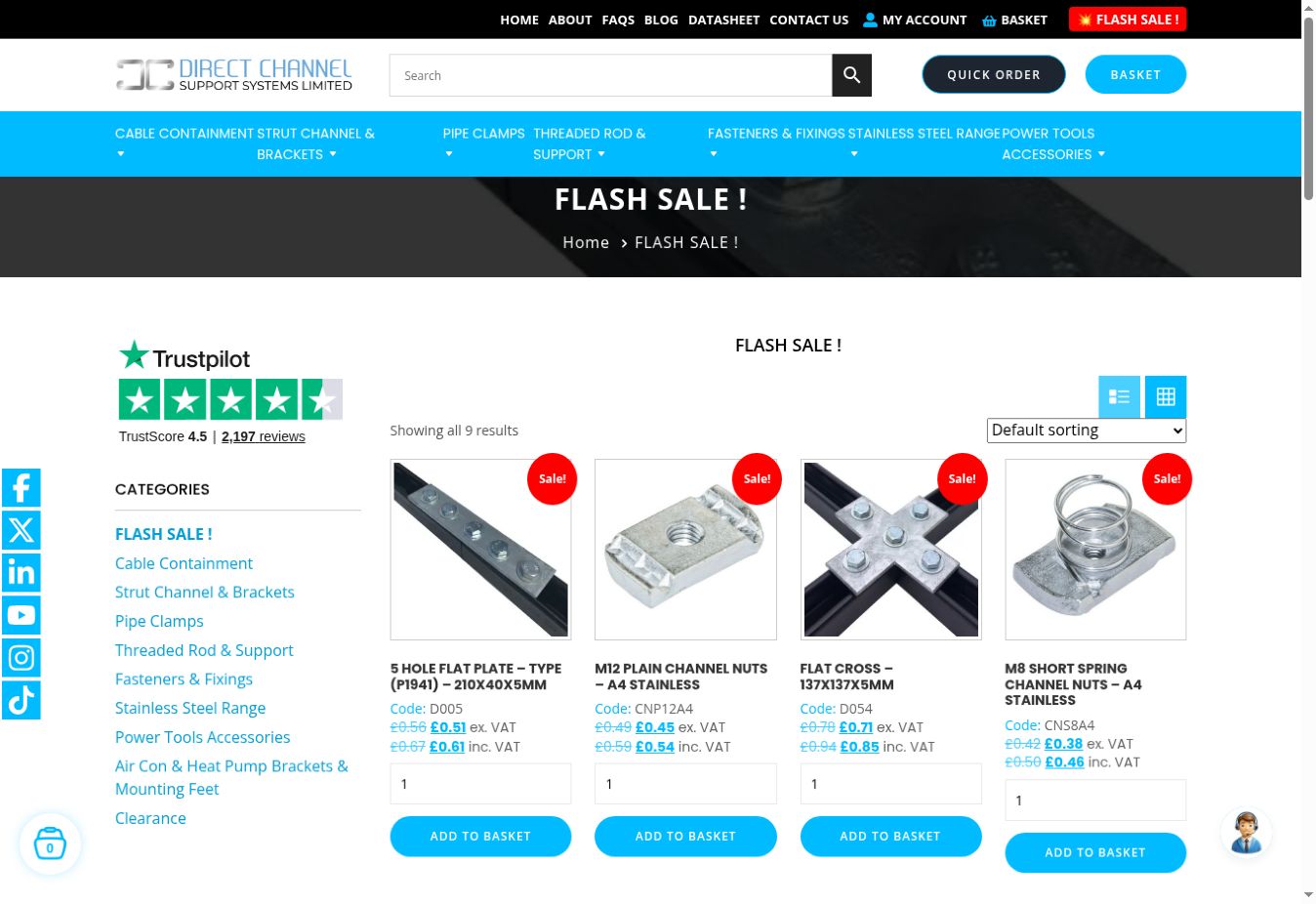
If a product stops appearing in Google Shopping, my first question is whether it is eligible to show at all. Changing bids will not repair a disapproved listing. I would start in Merchant Center, identify the exact issue and follow one affected product all the way back to the store.
This guide sets out that diagnostic process for a WooCommerce catalogue. It is particularly useful for B2B stores where pack quantities, trade pricing and supplier stock can make an apparently simple listing harder to reconcile.
1. Separate disapproval from poor visibility
In Merchant Center, open Products, then Needs attention. Read the issue attached to the affected item and check the relevant country and destination. A warning can limit performance while a disapproval stops that product showing; an account-level issue has a wider scope. Google explains these distinctions in its Merchant Center issues guide.
I would save the affected product IDs, the issue wording and the date before making changes. Start with a small sample that includes a simple product, a variable product and an item on promotion. That helps reveal whether the problem belongs to one record or a shared template.
An approved product with no impressions needs a different investigation. Check campaign inclusion and reporting separately. Do not assume every visibility problem is a feed error, or that resolving a feed error guarantees traffic.
2. Follow the price through the buying journey
Compare the submitted price with the exact landing page and the basket for the same variant and quantity. Include the currency in your notes. A parent product's lowest price is not a reliable comparison for a more expensive variation.
For UK listings, Google's price specification requires a VAT-inclusive submitted price and a matching landing-page price. That matters when a trade store prominently displays prices excluding VAT. For packs and minimum quantities, check what the customer must actually purchase. Google also documents how to submit prices for multipacks and products with minimum order quantities. See its price attribute requirements.
For example, imagine a hypothetical box listed at £24 while the feed contains the £2.40 price of one component. The investigation should establish the selling unit before anyone changes the number. Otherwise, a quick correction can create a second inconsistency elsewhere.
On WooCommerce, I would review the feed field mapping, the variation selected by the link, any pricing extension and the cached page a visitor receives. Also compare the sale's start and end times with the most recent successful feed update. Keep a record of which layer held the stale value.
3. Check availability for the specific variant
A product family can contain both available and unavailable variants. Inspect the option named in the submitted item, rather than accepting the parent page's general stock message as proof.
Google requires availability to agree across the data source, landing page and checkout. An existing product awaiting replenishment, for which you accept orders, uses backorder rather than preorder. Preorder is for an unreleased product. Both require an availability date, with the expected date visible on the landing page. The full conditions are in Google's availability specification.
My practical check would include the buy button, the basket message and the delivery wording. If a supplier supplies an availability spreadsheet, record when it was last imported. “The supplier has stock” and “our website has received the latest stock file” are separate statements.
4. Use a short reconciliation sheet
| Field | Compare | Record |
|---|---|---|
| Product identity | Item ID, SKU and selected variation | The exact offer being checked |
| Price | Feed, product page and basket | Amount, currency and selling quantity |
| Availability | Feed, page and checkout message | Status and expected dispatch date |
| Landing page | Submitted link and final page | Unexpected redirects or errors |
| Update history | Store edit and feed processing | Last successful update, not just last attempt |
I would add an owner and a proposed fix to each row. A content editor can correct a specification, but a stale cache or incorrect feed mapping may need someone else. Naming the owner avoids a report circulating without anyone changing the underlying record.
If your catalogue itself is inconsistent, start with the product-data audit for specifications, variants and pack sizes. Merchant Center makes some of these problems visible, but the customer-facing information deserves attention even when no warning appears.
5. Inspect the destination, not just the spreadsheet
Open the submitted URL as a visitor. Does it reach the intended item? Can you select the advertised option? Is important information obscured by a pop-up? Check the mobile view as well as desktop.
Google lists broken links, unavailable landing pages, inconsistent information and crawler restrictions among potential website issues. Follow the specific diagnostic shown in the account instead of making broad changes to your robots file or security settings. Google's issue guidance links to the relevant checks.
I would also compare the product's visible details with its structured data. After a theme or extension change, verify what the page actually outputs. A correct field in the administration screen is not enough evidence that every customer-facing representation has updated.
6. Fix the source and verify the next update
Choose the smallest change that resolves the diagnosed cause. If the exporter maps the wrong field, correct that mapping. If the variation has the wrong selling quantity, establish the correct value with the catalogue owner before exporting again.
Keep the original values and test a representative batch. Then inspect the processed item in Merchant Center and compare it with the live page again. Follow the review instructions for that particular issue where required. Do not promise a fixed recovery time or repeatedly request reviews while the same problem remains.
Automatic item updates can help keep price data aligned when Google crawls the page, but Google still requires regular product-data submissions. They are useful support, rather than a reason to ignore a failed feed. This is covered in the best-practice section of the price documentation.
7. Make the check part of launches and promotions
My handover checklist would include a normal-price product, a sale product, a variation, a pack and a backordered item where the store offers them. Repeat the comparison after a promotion ends, after a feed change and after a significant checkout update.
Track recurring issues by cause, not just the total number of disapprovals. Ten items with one shared mapping mistake call for a different response from ten unrelated content errors. The useful outcome is a repeatable process that keeps the catalogue dependable.
Once eligibility is restored, review performance separately. Product-page clarity, campaign decisions and the ordering and delivery experience still influence what happens after a buyer clicks.
Preparing for peak season? My Black Friday 2026 Google Ads checklist sets out when to update sale prices, promotions and budgets.
Common questions
Why are my products approved but not showing on Google Shopping?
Approval establishes eligibility, not a promise of visibility. Check the affected destination and campaign setup, then investigate impressions and demand. Treat this separately from resolving disapproved products.
Should I delete and upload disapproved products again?
I would first diagnose and fix the existing records. Recreating listings without understanding the cause makes the investigation harder and can leave the same underlying error in place.
Should I increase bids while fixing Merchant Center issues?
A bid change cannot correct a mismatch between a product record and its landing page. Establish eligibility first, then make advertising decisions using the resulting performance data.